Method #2: Connect To TVaddons Directly
1. In Kodi, navigate to System (don’t click on it though, just stand on it and then) >> File manager, select Add source from the left side of the screen (on PCs you may need to double click it).
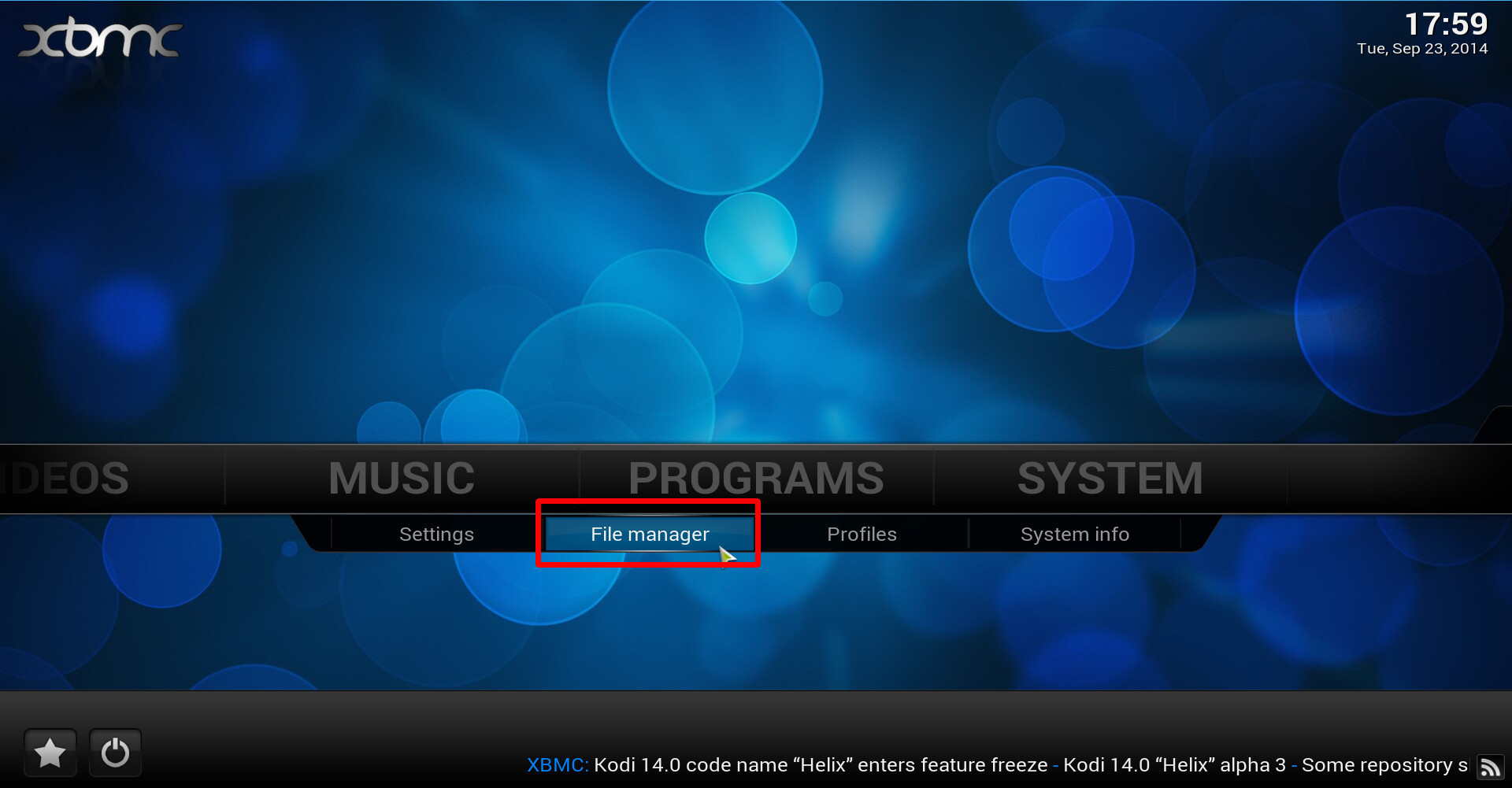
Go inside Kodi’s file manager.
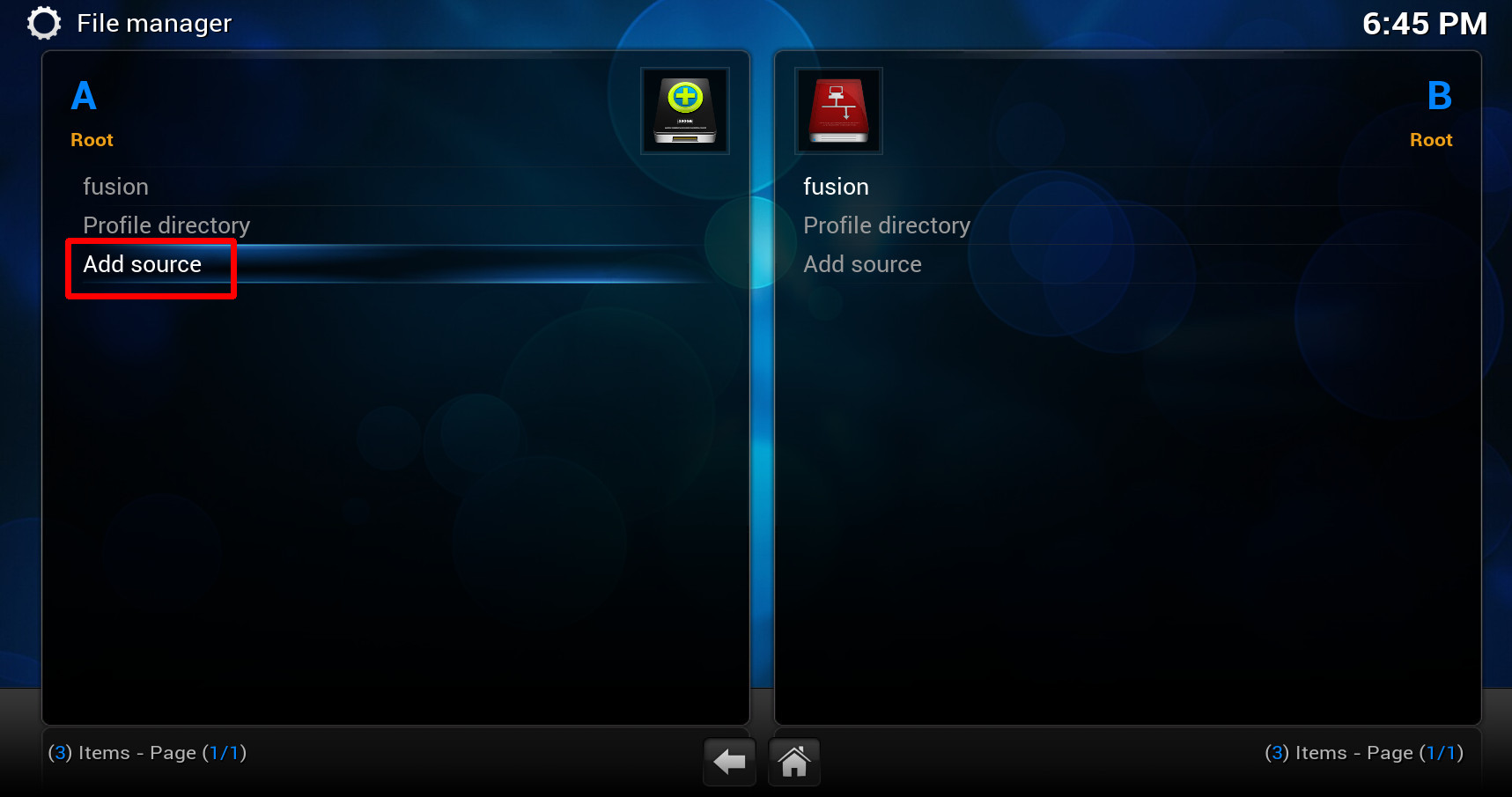
Select ‘Add source’.
2. Click on the text box that says <None> and type (using the on-screen keyboard) http://fusion.tvaddons.ag then click Done to the side of the keyboard.

3. Next, click on the lower field and enter a name that will represent this source. For example, I use TVaddons, then click Done.
Here’s how it’s supposed to look like:

Kodi: add source – TVaddons.
4. Now, go back to the main menu and navigate into System >> Add-ons >> Install from zip file, choose the source folder you’ve just added, e.g. TVaddons in my example.
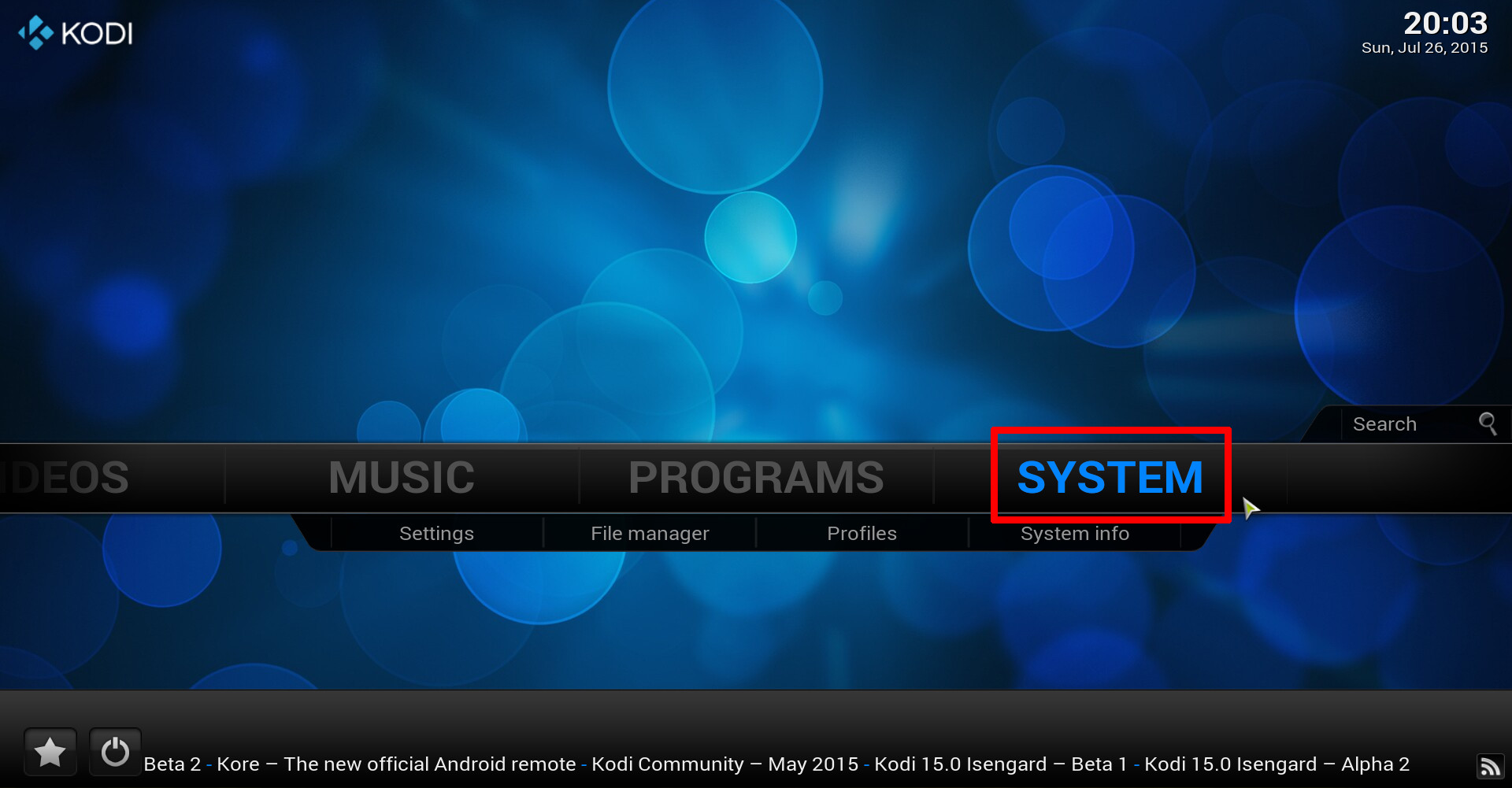
Enter Kodi’s system settings.
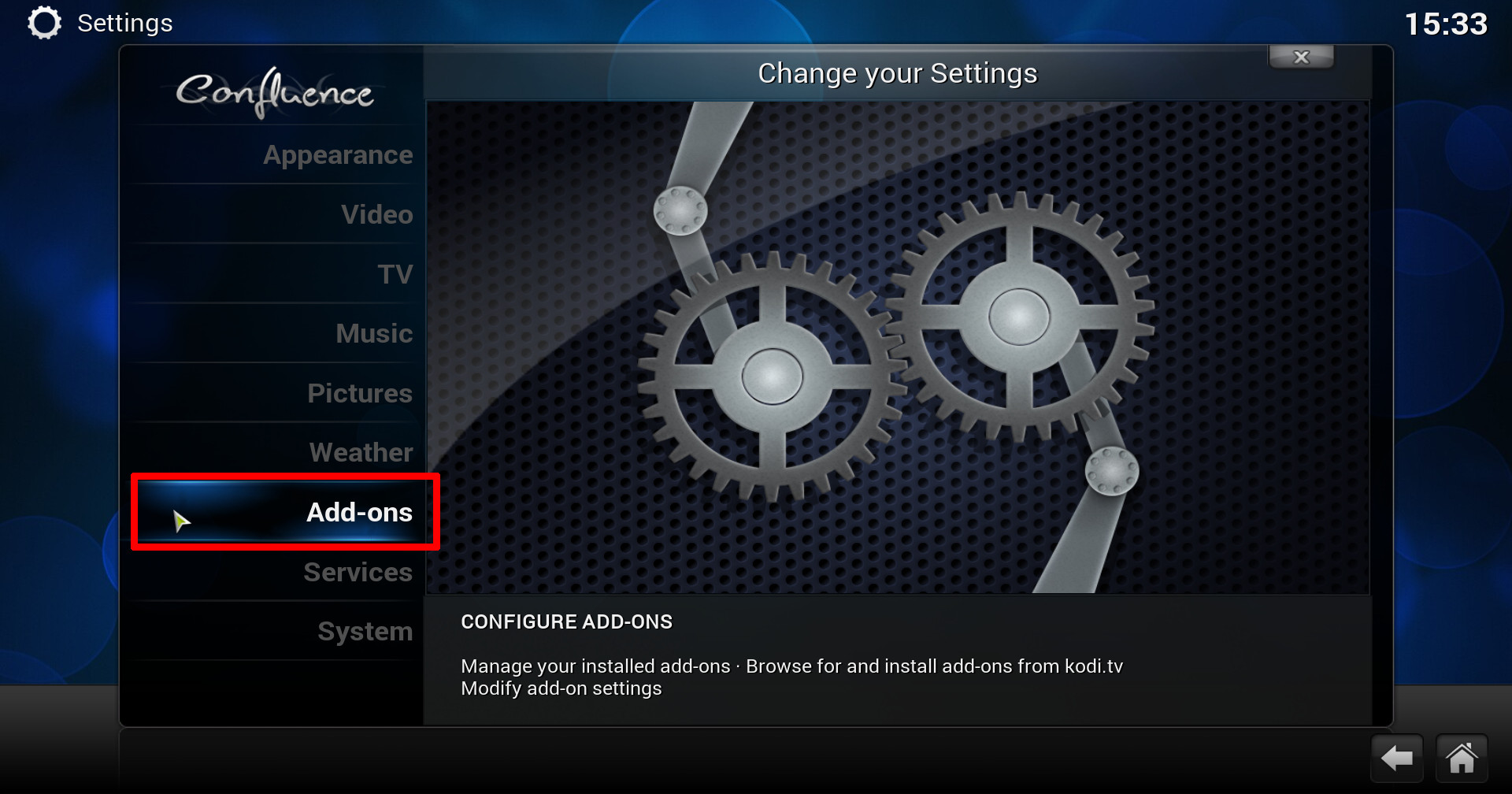
Enter kodi’s addons settings.
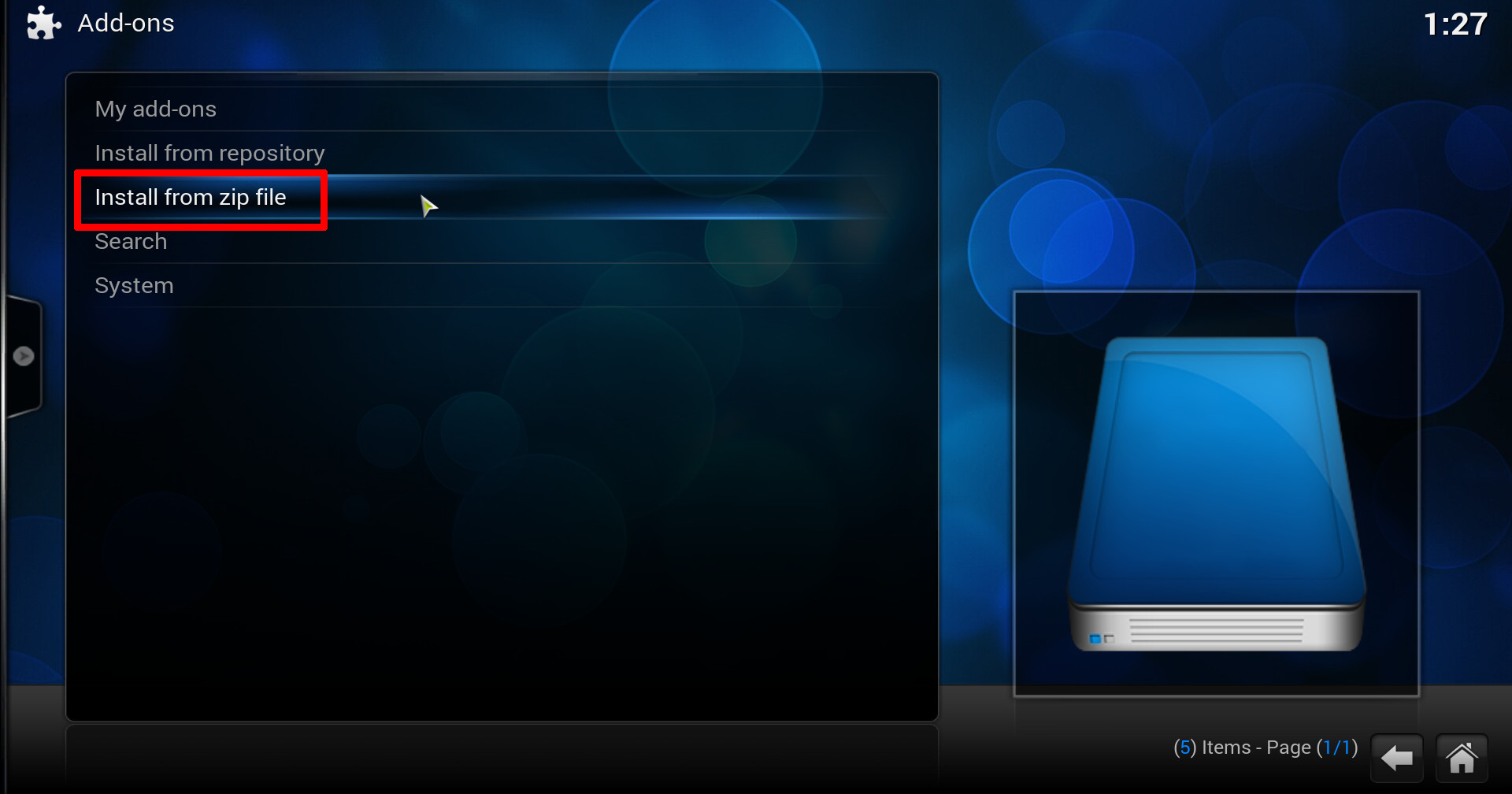
Install from zip file.

Connect to TVaddons source.
5. Inside there, choose start-here then install addon installer by clicking on plugin.program.addoninstaller.
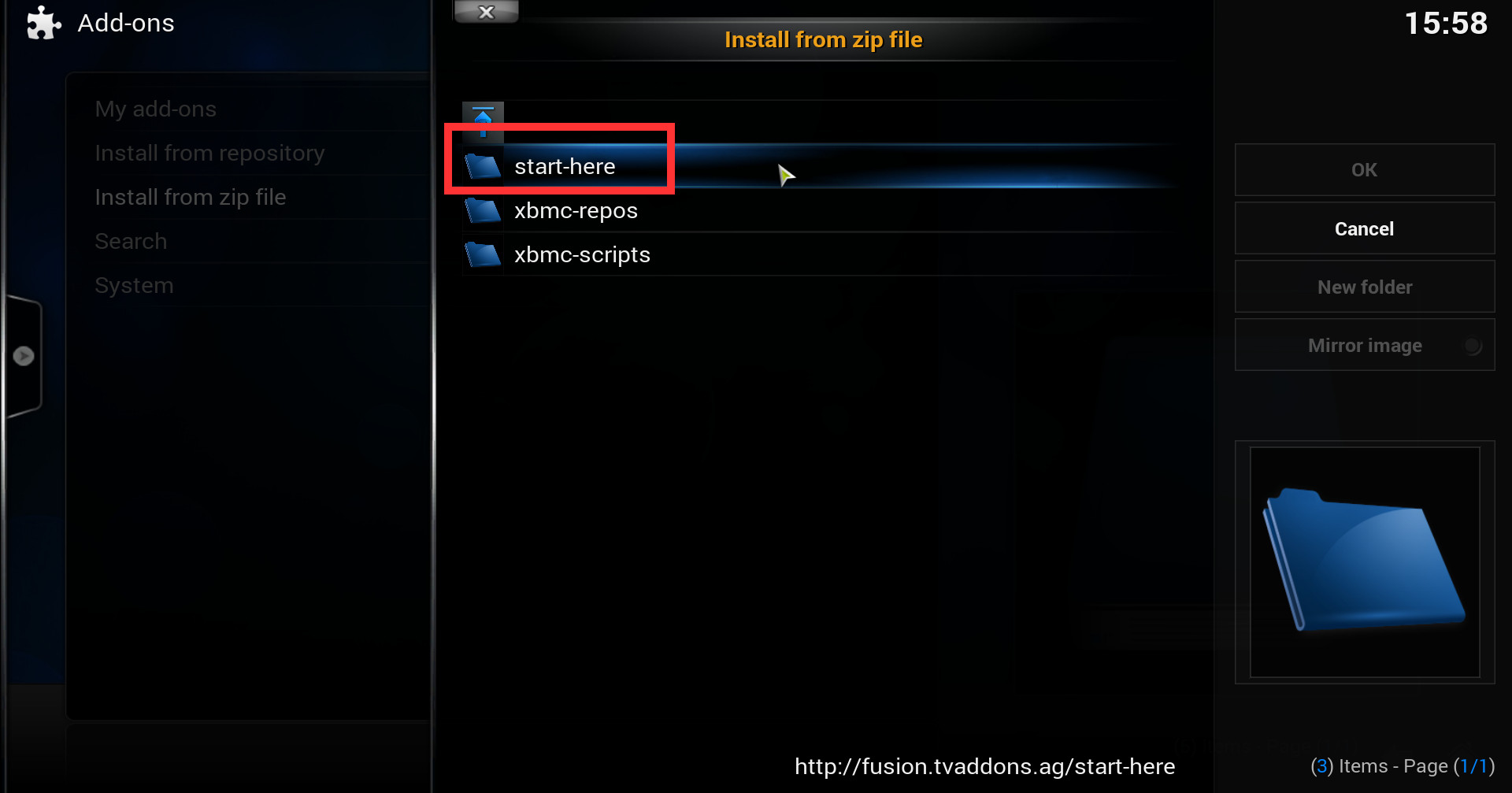
Go into start here
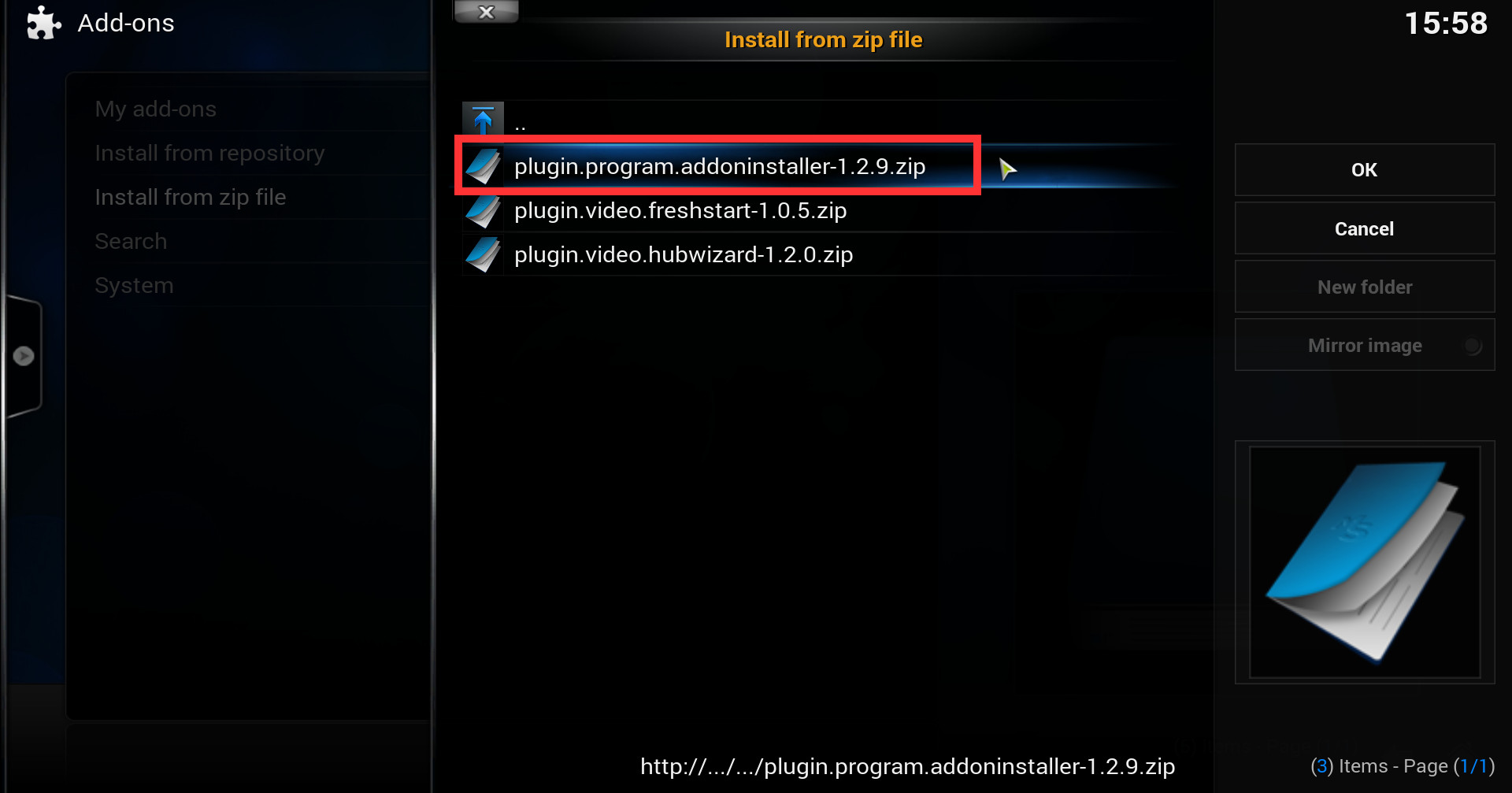
Install addon-installer plugin.
That’s it! Now, when you’ll want to install an addon from TVaddons repository, just navigate into PROGRAMS >> Addon Installer >> select category and addon name.